Try Google LiveAndroid Mobile OS LiveCD / USB on your x86 PC

LiveAndroid Logo

Want to give Google Android a try, but don’t feel like buying a T-Mobile G1? LiveAndroid lets you download a LiveCD disc image of the Google Android operating system. Just burn the image to a disc, stick it in a CD-ROM drive, and reboot your computer and you can check out Android without installing it or affecting any files on your PC.

You can also use the disc image in a virtualization application like VirtualBox, VMWare or Microsoft Virtual PC if you want to try the operating system without even rebooting your computer.

http://code.google.com/p/live-android/

So I tried out LiveAndroid myself, and I can say it does look pretty, but most of the functions won’t work anyways, since it’s only supposed to be offered to try out the OS on your computer without having to purchase the mobile phone it is bundled with. As a Google fan, you’re welcome to check out the glory of a Google Operating System before the Chrome OS is out.

Apparently at the time of writing, this doesn’t work on Netbooks yet as I’ve tried on my Lenovo S10 and it wouldn’t advance beyond the bootscreen. Do notify me if it does on yours.

Screenshots:

LiveAndroid01Home Continue reading

Custom fonts on your website using CSS

Have you ever felt the need to use designer or other custom fonts on your webpages rather than stay restricted to the limited number of fonts available on user’s’ computers? Sometimes we workaround this issue by using images in place of text when the fonts are only needed for displaying menu items, buttons or other elements that comprise of very little textual matter, so that it doesn’t add up to loading time of the page.

Now this isn’t something new, but only to those unaware, you can also easily embed an online font into your site, and use it throughout the pages retaining the text property on the content. This is implemented via CSS using the @font-face property.

An example using an embedded stylesheet.

<style type="text/css"> 
@font-face { 
            font-family:"CustomFontName"; 
            src:url(customfont.ttf) format("truetype"); 
           } 
h1 { 
    font-family:CustomFontName; 
   } 
</style>

In this manner, you can specify different fonts for different elements on your page i.e. headings, paragraphs, table contents, etc.

The browser downloads the font onto the users’ computer and displays the content accordingly. Note that it might take a few seconds until the font is displayed, as it depends upon the users’ connection for the time taken to download the font by the browser. While Firefox displays the unformatted text until the font is being downloaded, Safari doesn’t.

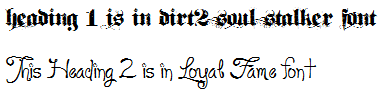
<style type="text/css">
@font-face {
            font-family:"dirt2";
            src:url(Dirt2.ttf) format("truetype");
}
@font-face {
            font-family:"loyal";
            src:url(Loyal.ttf) format("truetype");
}
h1 {
    font-family:dirt2;
}
h2 {
    font-family:loyal;
}
</style>
font preview 

More information on Mozilla Developers page @ https://developer.mozilla.org/index.php?title=En/CSS/%40font-face

Fixing HTML Fieldset overflow in IE

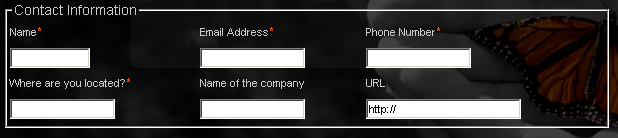
So I was working on this webpage for a client, and after everything was ready, I discovered I ran into a few errors in IE (that should always be expected 🙁 ). The major error was this:

broken fieldset IE

As you can see, the form elements overflow out of the fieldset, plus that weird bar over the top. Apparently I noticed a few other blogs having solutions to similar fieldset issues for IE7, but I’m sharing you what worked for me.

Just a simple overflow:visible 😀 alongwith the width.

<fieldset style="overflow:visible;width: 600px;">

broken fieldset IE fixed

Hope it helps anyone running into a similar issue. I spent an entire day working around this.